How to Prepare a Canva Design for T-Shirt Printing
Prepare and export Canva artwork for t-shirt printing with correct dimensions, transparency, file options, licence checks and proof approval.
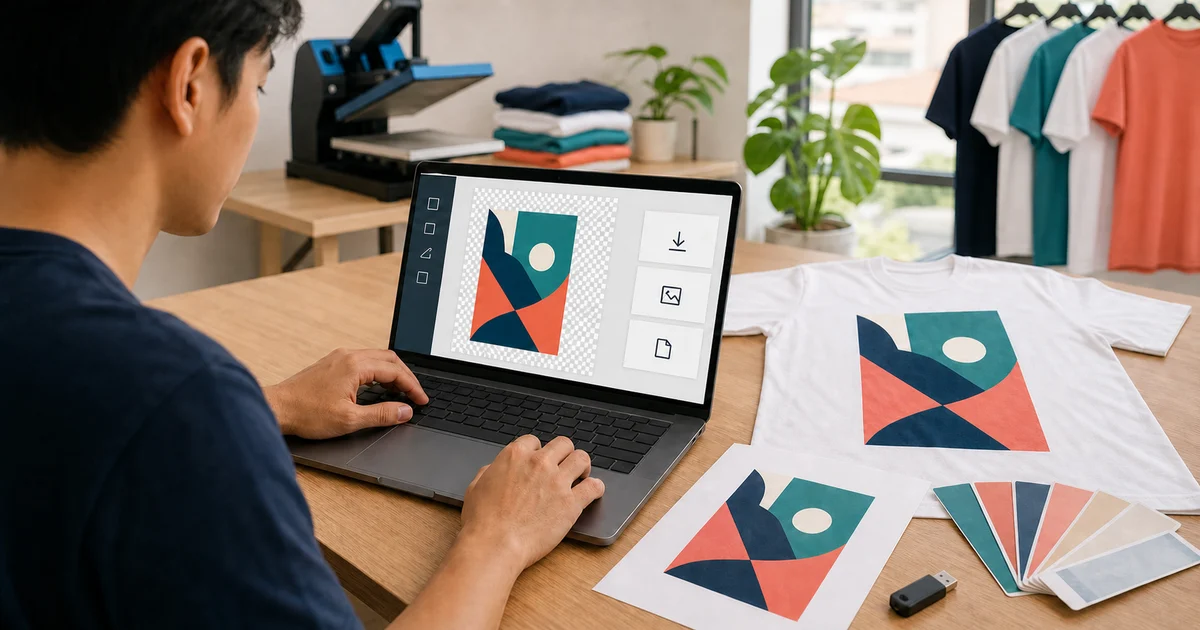
The short answer: prepare your Canva t-shirt design at the intended proportions, remove any background that should not print, use sharp source images, record the final width in centimetres and export the format your printer requests. A practical package is often PDF Print plus a high-resolution transparent PNG and a visual proof, but the printer’s specification comes first.
Do not send only a screenshot, WhatsApp preview or shirt mockup. The printer needs the artwork itself, separate from the photograph of a shirt.
Start with the printer’s production requirements
Before opening Canva, ask the supplier for:
- final print width and maximum print area;
- front, back or sleeve position;
- printing method;
- preferred file format;
- required background treatment;
- colour references; and
- whether text must be outlined or editable.
This prevents you from building a wide full-front graphic when the quotation covers a small chest print. Use the logo print-size guide to choose a sensible starting dimension.
Build the artwork, not a shirt mockup
Create one clean design page containing only the artwork that will be produced. A shirt photograph is useful in a separate proof, but it should not sit behind the final print file.
For a multi-position order, keep front, back and sleeve artwork on separate pages or exports. Use clear filenames outside the artwork, such as:
event-shirt-front-final.pdf;event-shirt-back-final.pdf; andevent-shirt-sleeve-final.png.
Avoid adding labels such as “front” inside the printable area unless those words are part of the design.
Set the correct shape and finished size
Use a custom Canva canvas that matches the artwork’s intended proportions. Then tell the printer the final visible width in centimetres; the document size alone may not explain how large the logo should appear on the shirt.
Check these points:
- no important element is accidentally outside the page;
- empty page space is not being mistaken for part of the logo;
- the artwork remains proportional when resized;
- the smallest shirt can accommodate the requested width; and
- the top reference from the collar or seam is shown on a separate proof.
For mixed garment sizes, ask whether the printer will use one print size or separate size groups.
Remove an unintended background
A white Canva page does not automatically mean the output will have transparency. If only the logo or graphic should print, export with a transparent background where the selected format and your Canva access allow it.
Canva’s current transparent image guidance describes choosing PNG and the transparent-background option. Feature availability can depend on the account and workflow, so inspect the actual downloaded file on both a light and dark background.
Keep a solid background only when it is an intentional printed shape. Tell the printer its exact boundary and colour.
Use original, high-quality assets
Upload the original logo or illustration rather than a screenshot copied from a website or messaging app. Enlarging a small image inside Canva does not add missing detail.
Prefer:
- a vector logo supplied by the brand owner;
- the original high-resolution photograph or illustration;
- a PNG with genuine transparency; and
- legally licensed fonts and elements.
If a raster image looks soft at 100% view, ask the printer to preflight it at the final print width. The general t-shirt artwork guide explains vector files and raster resolution in more detail.
Check text before export
Proofread names, dates, phone numbers and sponsor marks at full zoom. Then check:
- spelling and capitalisation;
- line breaks and alignment;
- text contrast on the garment colour;
- whether very thin or small type can survive the chosen method; and
- whether the printer needs text converted to vector outlines.
Canva exports may preserve text appearance, but they do not guarantee the editable outlined paths required by every production workflow. If outlined text is mandatory, ask whether the printer can preflight the PDF/SVG or needs the artwork rebuilt in a vector application.
Choose the right Canva export
| Export | Useful when | Check before sending |
|---|---|---|
| PDF Print | The printer wants a high-quality document that preserves page layout | Whether the PDF retains usable vectors, correct dimensions and transparency |
| Transparent PNG | The design contains raster artwork or full-colour effects and needs no background | Pixel dimensions, actual transparency and final print width |
| SVG | The artwork is simple and vector-based and the printer accepts SVG | Fonts, effects, embedded raster images and compatibility |
| Canva share link | The supplier is authorised to collaborate or copy the source | Access permissions, ownership, version control and licence restrictions |
Canva distinguishes PDF Print from PDF Standard, recommending PDF Print for printing. However, t-shirt artwork normally does not need paper crop marks or bleed unless the printer specifically requests them. Those controls are designed for trimmed print products and can confuse an apparel file.
If you export SVG, remember that putting a low-resolution photo inside an SVG does not make the photo vector. Use the companion AI, PDF, PNG and SVG guide to choose the production file.
Confirm colour expectations
Canva’s screen preview is not a physical fabric proof. Screens emit light; garments and inks reflect light. Record critical brand colours using the reference your printer accepts and approve them on the selected shirt colour.
Do not convert colours blindly just because a file is “for print”. Ask whether the printer wants RGB artwork, CMYK values, spot-colour references or its own RIP conversion. The Pantone, CMYK and RGB guide explains those choices.
Check your right to print every element
Use artwork you created, own or have permission to reproduce. For Canva library content, review the element’s source information and the current Canva Content License Agreement.
Canva’s current products-for-sale guidance says original designs can use eligible Free and Pro content on printed products, but content cannot simply be sold as a standalone item. Branded, Editorial and Education content can have different restrictions. This is a licence check, not a technical export setting.
If the design includes company logos, sponsor marks, school crests or character artwork, obtain permission from the rights holder before production.
Send one controlled artwork package
Before ordering, send:
- the clearly named final production export;
- a transparent PNG when useful;
- a PDF or image proof showing placement;
- final width in centimetres;
- garment code, colour and size range;
- colour references;
- front, back and sleeve files separated; and
- one written note identifying the approved version.
Keep the editable Canva source in your account for corrections and reorders. Avoid sending several files all called “final”.
Once the package is ready, request comparable quotations through Baju Printz and ask each supplier to confirm the exact file they will use before production.
Frequently asked questions
What Canva file should I send for t-shirt printing?
Ask the printer first. PDF Print is a useful layout-preserving handoff, while a high-resolution transparent PNG is practical for raster artwork; simple vector artwork may also suit SVG when the printer accepts it.
Should a Canva t-shirt design have a transparent background?
Usually yes when only the artwork should print and no rectangular background is intended. Confirm transparency in the exported file rather than assuming a white Canva page will disappear during production.
Can a printer edit my Canva design?
A printer may be able to make basic adjustments, but a Canva link is not a guaranteed production file. Keep your editable source and agree whether the printer will work from an export, a shared copy or rebuilt vector artwork.
Can I print Canva library elements on t-shirts?
Canva permits many printed-product uses subject to its current Content License Agreement, but standalone content, branded content and Education content can have restrictions. Check the source information and current licence for every element you did not create.
Ready to compare suitable printers?
Get 5 Free Quotes